
HopToDesk をはじめる
自分のパソコンにリモート接続しようとすると、ネットワークの知識やパソコン操作に自信がなく尻込みする方が少なくありません。中にはファイアウォール設定やポート設定の変更が必要で、日常的な利用者には難しいアプリもあります。HopToDesk ならそれが簡単です。リモートデスクトップソフトを使うのが初めてでも問題ありません。
まずは、HopToDesk の使い方と、世界中どこからでも任意のデバイスに接続する手順をご案内します。
HopToDesk は幅広いプラットフォームに対応しています。ホーム画面で使いたいプラットフォーム(Windows、Mac、Android など)を選び、ダウンロードボタンをクリックします。ダウンロードしたファイルを開いてアプリを実行してください。リモート接続したい他のデバイスでも同じ手順を繰り返します。
発信接続を行うには、操作したいデバイスと操作に使うデバイスの両方でアプリが開いていることを確認してください。デバイス ID(左上の固有の番号)とパスワードを控えます。HopToDesk アプリで、アクセスしたいデバイスの ID を「パートナー ID」欄に入力し、青い「接続」ボタンをクリックします。
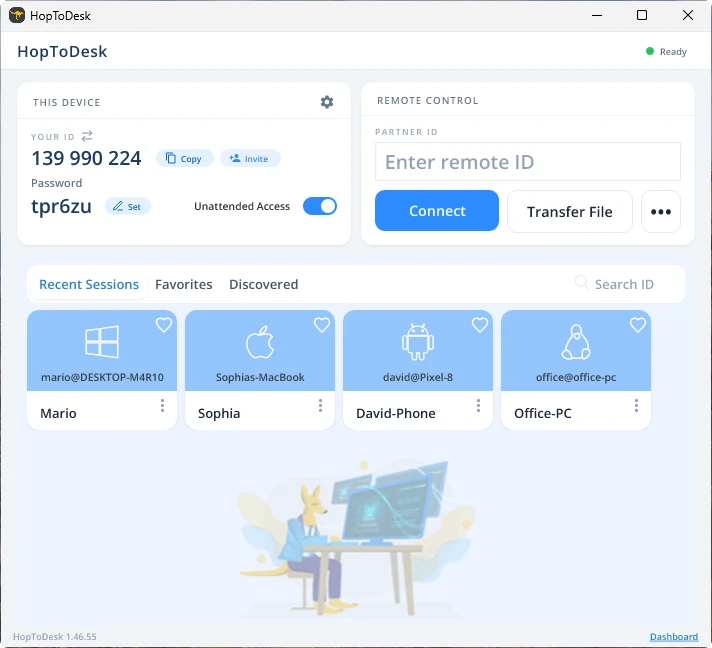
その後、お使いのデバイスは、その ID に対応するもう一方のデバイスと安全な接続を確立します。接続後は、もう一方のデバイス側で手動で接続を承認するか、パスワードでこの手順を省略できます。パスワードはアプリ内の各 ID 番号の下に表示されます。必要なのはアクセス先デバイスのパスワードである点にご注意ください。特定のデバイス ID とパスワードは、素早くアクセスできるよう保存し、別名を付けることもできます。
接続が確立すると、そのデバイスをリモートで操作できるようになります。発信側から接続したデバイスは、お使いのデバイス上でウィンドウとして表示されます。見やすくするには、接続ウィンドウ上部のオプションで拡大・縮小できます。ファイル転送のオプションを使えば、2 台のデバイス間でファイルを簡単にやり取りすることもできます。
HopToDesk では、最も安全でアクセスしやすいリモートデスクトップソフトウェアであることを目指しています。開発と改善を続けており、利用者の声をぜひお聞かせください。ご要望や、どうすればより良くお役に立てるかをお知らせください。