HopToDesk 入門
說到遠端存取自己的電腦,許多潛在使用者會因為缺乏網路知識或電腦技能而卻步。有些應用程式相當技術性,需要變更防火牆設定或連接埠設定,超出一般使用者的能力。而 HopToDesk 讓這件事變得簡單,尤其當您從未使用過遠端桌面軟體時。
首先,我們將帶您了解如何開始使用 HopToDesk,並從世界任何地方存取任何裝置。
HopToDesk 提供廣泛的平台相容性。在首頁選擇您要使用的平台(Windows、Mac、Android 等)並點擊下載按鈕。開啟下載的檔案並執行應用程式。在您想要遠端存取的其他裝置上重複此流程。
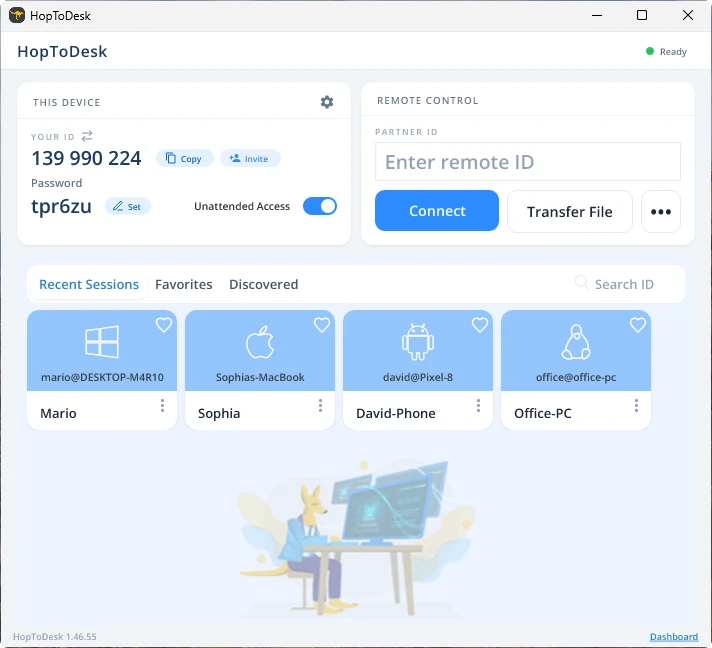
To make an outgoing connection, make sure the app is opened
on the device you want to control and the device you will be
controlling from. Make sure to note the device ID (unique
number located at top left corner) and password. From your
HopToDesk app, type in the device ID of the device you want
to access in the fillable space at top center of the app
under "Control Remote Desktop" and click the blue "Connect"
button.
Your device will then make a secure connection to the other
device associated with that ID. Once connected you can
either manual accept the connection from the other device or
you can bypass with the password. The password is located
under each ID number in the app. Remember you will need the
password for the device you are accessing. Specific device
IDs and passwords can be save for faster access and given
nicknames.
Once a connection is established you will have remote
control over that device. The outgoing connection device
will show as a window on your device. You can zoom in/ out
via the options at top the connect window for better
viewing. Transfer file option can easily exchange files
between the devices as well.
在 HopToDesk,我們的目標是成為最安全、最容易使用的遠端桌面軟體。我們持續開發與改進,也非常希望聽到使用者的意見,請告訴我們您的需求以及我們可以如何做得更好。