
البدء مع HopToDesk
عندما يتعلق الأمر بالوصول إلى جهازك عن بُعد، يشعر كثير من المستخدمين بالتردد بسبب نقص المعرفة بالشبكات أو مهارات الحاسوب. هناك تطبيقات تقنية للغاية وتتطلب تغيير إعدادات جدار الحماية أو تكوين المنافذ، وهو ما يتجاوز خبرة المستخدم العادي. لكن HopToDesk يجعل الأمر سهلاً، خاصة إذا لم تستخدم برنامج سطح مكتب بعيد من قبل.
للبدء، سنرشدك خطوة بخطوة إلى كيفية استخدام HopToDesk والوصول إلى أي جهاز من أي مكان في العالم.
يوفّر HopToDesk توافقًا واسعًا مع المنصات. من الشاشة الرئيسية اختر المنصة (Windows أو Mac أو Android وغيرها) التي تريد استخدامها واضغط زر التنزيل. افتح الملف الذي تم تنزيله وتابع تشغيل التطبيق. كرّر هذه الخطوات على أي أجهزة أخرى تريد الوصول إليها عن بُعد.
لإجراء اتصال صادر، تأكد من فتح التطبيق على الجهاز الذي تريد التحكم فيه وعلى الجهاز الذي ستتحكم منه. دوّن معرّف الجهاز (الرقم الفريد في الزاوية العلوية اليسرى) وكلمة المرور. من تطبيق HopToDesk لديك، اكتب معرّف الجهاز الذي تريد الوصول إليه في خانة Partner ID، ثم انقر الزر الأزرق «اتصال».
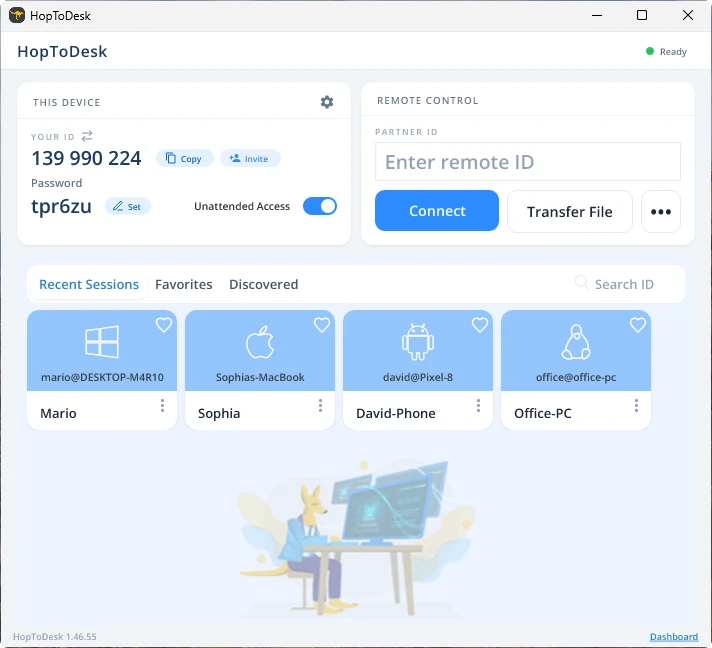
سيقيم جهازك بعد ذلك اتصالاً آمناً بالجهاز الآخر المرتبط بذلك المعرّف. وبعد الاتصال يمكنك إما قبول الاتصال يدوياً من الجهاز الآخر أو تخطي هذه الخطوة بكلمة المرور. وتوجد كلمة المرور أسفل كل رقم معرّف في التطبيق. وتذكّر أنك ستحتاج إلى كلمة مرور الجهاز الذي تصل إليه. ويمكن حفظ معرّفات وكلمات مرور محددة للوصول الأسرع وإعطاؤها أسماء مستعارة.
بمجرد إنشاء الاتصال سيكون لديك تحكم عن بُعد في ذلك الجهاز. وسيظهر جهاز الاتصال الصادر كنافذة على جهازك. ويمكنك التكبير أو التصغير عبر الخيارات في أعلى نافذة الاتصال لعرض أفضل. كما يتيح خيار نقل الملفات تبادل الملفات بين الجهازين بسهولة.
هدفنا في HopToDesk أن نكون أكثر برامج سطح المكتب البعيد أمانًا وسهولة في الوصول. نحن نطوّر ونحسّن باستمرار ويسعدنا أن نسمع من مستخدمينا، فأخبرنا بما تريده وكيف يمكننا خدمتك بشكل أفضل.