HopToDesk 入门
说到远程访问自己的电脑,许多潜在用户会因为缺乏网络知识或电脑技能而却步。有些应用相当技术化,需要更改防火墙设置或端口配置,这超出了日常用户的能力范围。而 HopToDesk 让这件事变得简单,尤其是当你从未用过远程桌面软件时。
首先,我们将带您了解如何开始使用 HopToDesk,并从世界任何地方访问任意设备。
HopToDesk 提供广泛的平台兼容性。在首页选择您要使用的平台(Windows、Mac、Android 等)并点击下载按钮。打开下载的文件并继续运行应用。在您想要远程访问的其他设备上重复此过程。
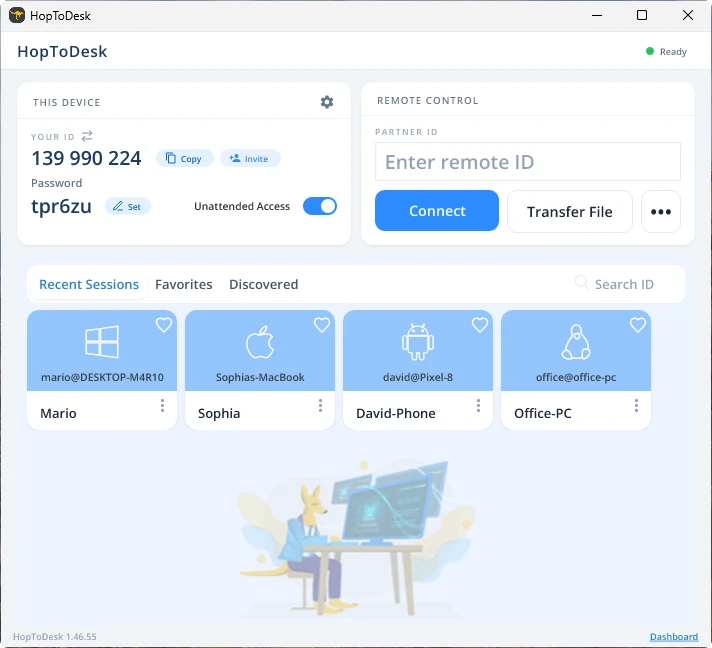
To make an outgoing connection, make sure the app is opened
on the device you want to control and the device you will be
controlling from. Make sure to note the device ID (unique
number located at top left corner) and password. From your
HopToDesk app, type in the device ID of the device you want
to access in the fillable space at top center of the app
under "Control Remote Desktop" and click the blue "Connect"
button.
Your device will then make a secure connection to the other
device associated with that ID. Once connected you can
either manual accept the connection from the other device or
you can bypass with the password. The password is located
under each ID number in the app. Remember you will need the
password for the device you are accessing. Specific device
IDs and passwords can be save for faster access and given
nicknames.
Once a connection is established you will have remote
control over that device. The outgoing connection device
will show as a window on your device. You can zoom in/ out
via the options at top the connect window for better
viewing. Transfer file option can easily exchange files
between the devices as well.
在 HopToDesk,我们的目标是成为最安全、最易于使用的远程桌面软件。我们持续开发与改进,也非常希望听到用户的声音,请告诉我们您的需求以及我们可以如何做得更好。