
เริ่มต้นใช้งาน HopToDesk
เมื่อพูดถึงการเข้าถึงคอมพิวเตอร์จากระยะไกล ผู้ใช้จำนวนมากรู้สึกกังวลเพราะขาดความรู้ด้านเครือข่ายหรือทักษะคอมพิวเตอร์ บางแอปค่อนข้างเทคนิคและต้องแก้ไขการตั้งค่าไฟร์วอลล์หรือพอร์ต ซึ่งเกินความสามารถของผู้ใช้ทั่วไป แต่ HopToDesk ทำให้เรื่องนี้ง่าย โดยเฉพาะหากคุณไม่เคยใช้ซอฟต์แวร์เดสก์ท็อประยะไกลมาก่อน
ในการเริ่มต้น เราจะแนะนำวิธีใช้งาน HopToDesk และการเข้าถึงอุปกรณ์ใดก็ได้จากทุกที่ทั่วโลก
HopToDesk รองรับหลายแพลตฟอร์ม บนหน้าจอหลักให้เลือกแพลตฟอร์มที่ต้องการ (Windows, Mac, Android และอื่น ๆ) แล้วคลิกปุ่มดาวน์โหลด เปิดไฟล์ที่ดาวน์โหลดแล้วเรียกใช้แอป ทำซ้ำขั้นตอนนี้บนอุปกรณ์อื่นที่คุณต้องการเข้าถึงจากระยะไกล
หากต้องการเชื่อมต่อขาออก โปรดตรวจสอบว่าเปิดแอปไว้ทั้งบนอุปกรณ์ที่คุณต้องการควบคุมและบนอุปกรณ์ที่คุณใช้ควบคุม จดหมายเลข ID ของอุปกรณ์ (หมายเลขเฉพาะที่มุมบนซ้าย) และรหัสผ่านไว้ จากแอป HopToDesk ของคุณ ให้พิมพ์ ID ของอุปกรณ์ที่ต้องการเข้าถึงลงในช่อง "รหัสพันธมิตร" แล้วคลิกปุ่มสีน้ำเงิน "เชื่อมต่อ"
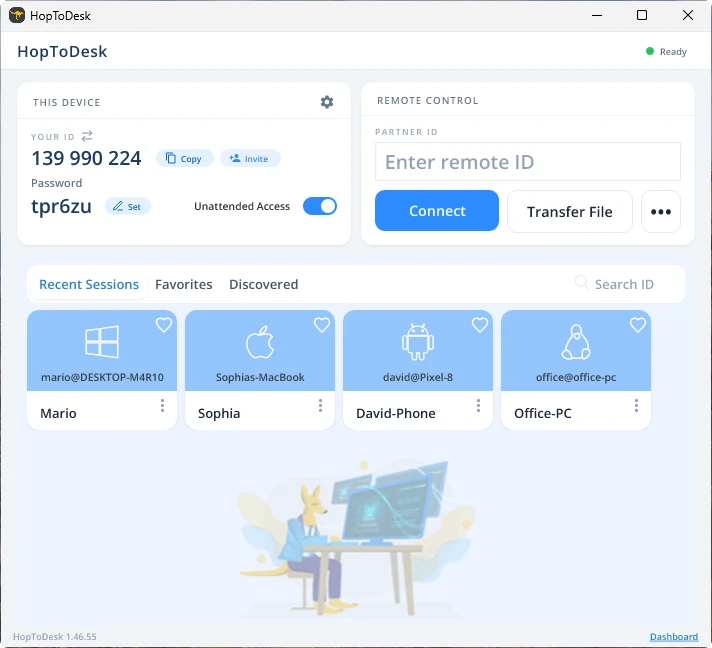
จากนั้นอุปกรณ์ของคุณจะสร้างการเชื่อมต่อที่ปลอดภัยกับอีกอุปกรณ์หนึ่งที่ผูกกับ ID นั้น เมื่อเชื่อมต่อแล้ว คุณสามารถกดยอมรับการเชื่อมต่อด้วยตนเองจากอีกอุปกรณ์หนึ่ง หรือข้ามขั้นตอนนี้ด้วยรหัสผ่าน รหัสผ่านจะอยู่ใต้หมายเลข ID แต่ละหมายเลขในแอป โปรดจำไว้ว่าคุณต้องใช้รหัสผ่านของอุปกรณ์ที่คุณกำลังเข้าถึง คุณสามารถบันทึก ID อุปกรณ์และรหัสผ่านบางรายการไว้เพื่อเข้าถึงได้เร็วขึ้นและตั้งชื่อเล่นให้ได้
เมื่อเชื่อมต่อสำเร็จ คุณจะควบคุมอุปกรณ์นั้นจากระยะไกลได้ อุปกรณ์ปลายทางของการเชื่อมต่อขาออกจะปรากฏเป็นหน้าต่างบนอุปกรณ์ของคุณ คุณสามารถขยายหรือย่อภาพได้จากตัวเลือกด้านบนของหน้าต่างการเชื่อมต่อเพื่อให้มองเห็นได้ดีขึ้น ตัวเลือกการโอนไฟล์ยังช่วยให้แลกเปลี่ยนไฟล์ระหว่างอุปกรณ์ทั้งสองได้อย่างสะดวก
ที่ HopToDesk เป้าหมายของเราคือการเป็นซอฟต์แวร์เดสก์ท็อประยะไกลที่ปลอดภัยและเข้าถึงง่ายที่สุด เราพัฒนาและปรับปรุงอยู่เสมอ และอยากรับฟังจากผู้ใช้ โปรดบอกเราว่าคุณต้องการอะไรและเราจะให้บริการคุณได้ดีขึ้นอย่างไร