
תחילת העבודה עם HopToDesk
כשמדובר בגישה מרחוק למחשב, משתמשים פוטנציאליים רבים נרתעים בגלל חוסר ידע ברשתות או במחשבים. יש יישומים טכניים למדי שדורשים שינויים בהגדרות חומת האש או בתצורת הפורטים, מעבר ליכולת המשתמש היומיומי. אבל HopToDesk מקל על כך, במיוחד אם מעולם לא השתמשתם בתוכנת שולחן עבודה מרוחק.
נתחיל, ונלווה אתכם שלב אחר שלב בשימוש ב-HopToDesk ובגישה לכל מכשיר מכל מקום בעולם.
HopToDesk תומך במגוון רחב של פלטפורמות. במסך הבית בחרו את הפלטפורמה (Windows, Mac, Android ועוד) שברצונכם להשתמש בה ולחצו על כפתור ההורדה. פתחו את הקובץ שהורד והפעילו את היישום. חזרו על התהליך בכל מכשיר נוסף שאליו תרצו לגשת מרחוק.
כדי ליצור חיבור יוצא, ודאו שהאפליקציה פתוחה גם במכשיר שברצונכם לשלוט בו וגם במכשיר שממנו תשלטו. רשמו את מזהה המכשיר (המספר הייחודי בפינה הימנית העליונה) ואת הסיסמה. באפליקציית HopToDesk, הקלידו את מזהה המכשיר שאליו תרצו לגשת בשדה "מזהה שותף" ולחצו על הכפתור הכחול "התחברות".
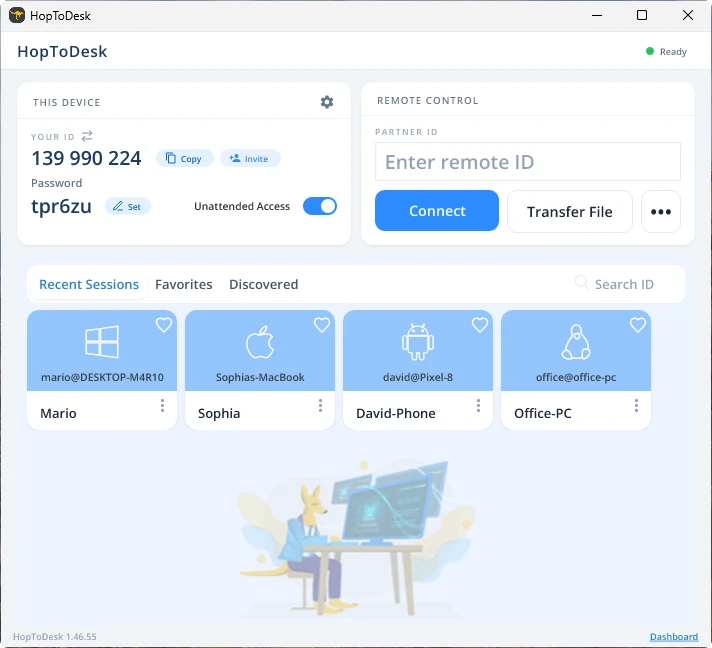
המכשיר שלכם ייצור אז חיבור מאובטח למכשיר האחר המשויך לאותו מזהה. לאחר החיבור תוכלו לאשר את החיבור ידנית מהמכשיר האחר או לדלג על השלב הזה באמצעות הסיסמה. הסיסמה מופיעה מתחת לכל מספר מזהה באפליקציה. זכרו שתזדקקו לסיסמה של המכשיר שאליו אתם ניגשים. אפשר לשמור מזהי מכשירים וסיסמאות מסוימים לגישה מהירה יותר ולתת להם כינוי.
לאחר שהחיבור נוצר תהיה לכם שליטה מרחוק על אותו מכשיר. מכשיר החיבור היוצא יופיע כחלון במכשיר שלכם. אפשר להתקרב ולהתרחק דרך האפשרויות בראש חלון החיבור לצפייה נוחה יותר. אפשרות העברת הקבצים מאפשרת גם להחליף קבצים בין המכשירים בקלות.
ב-HopToDesk המטרה שלנו היא להיות תוכנת שולחן העבודה המרוחק המאובטחת והנגישה ביותר. אנחנו מפתחים ומשפרים כל הזמן ונשמח לשמוע מהמשתמשים שלנו, אז ספרו לנו מה תרצו וכיצד נוכל לשרת אתכם טוב יותר.