
Memulai dengan HopToDesk
Dalam hal mengakses komputer dari jarak jauh, banyak calon pengguna merasa ragu karena kurangnya pengetahuan jaringan atau keterampilan komputer. Beberapa aplikasi cukup teknis dan memerlukan perubahan pengaturan firewall atau konfigurasi port, yang di luar kemampuan pengguna sehari-hari. Namun HopToDesk membuatnya mudah, terutama jika Anda belum pernah memakai perangkat lunak desktop jarak jauh.
Untuk memulai, kami akan memandu Anda menggunakan HopToDesk dan mengakses perangkat mana pun dari mana saja di dunia.
HopToDesk menawarkan kompatibilitas platform yang luas. Di layar utama, pilih platform (Windows, Mac, Android, dan lainnya) yang ingin Anda pakai lalu klik tombol unduh. Buka berkas hasil unduhan dan jalankan aplikasinya. Ulangi langkah ini pada perangkat lain yang ingin Anda akses dari jarak jauh.
Untuk membuat koneksi keluar, pastikan aplikasi terbuka baik di perangkat yang ingin Anda kendalikan maupun di perangkat yang Anda gunakan untuk mengendalikan. Catat ID perangkat (nomor unik di pojok kiri atas) dan kata sandinya. Dari aplikasi HopToDesk Anda, ketik ID perangkat yang ingin diakses pada kolom ID Mitra, lalu klik tombol biru Hubungkan.
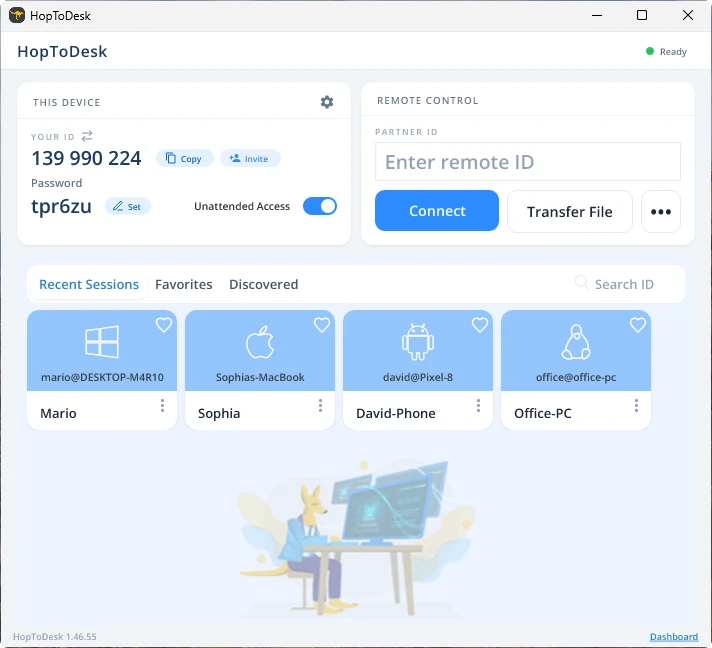
Perangkat Anda kemudian akan membangun koneksi aman dengan perangkat lain yang terkait dengan ID tersebut. Setelah terhubung, Anda dapat menerima koneksi secara manual dari perangkat lain atau melewati langkah ini dengan kata sandi. Kata sandi terletak di bawah setiap nomor ID di aplikasi. Ingat bahwa Anda memerlukan kata sandi perangkat yang Anda akses. ID perangkat dan kata sandi tertentu dapat disimpan untuk akses lebih cepat dan diberi nama alias.
Setelah koneksi terbentuk, Anda akan memiliki kendali jarak jauh atas perangkat tersebut. Perangkat koneksi keluar akan muncul sebagai jendela di perangkat Anda. Anda dapat memperbesar atau memperkecil melalui opsi di bagian atas jendela koneksi untuk tampilan yang lebih baik. Opsi transfer berkas juga memudahkan pertukaran berkas antara kedua perangkat.
Di HopToDesk, tujuan kami adalah menjadi perangkat lunak desktop jarak jauh yang paling aman dan paling mudah diakses. Kami terus membangun dan menyempurnakan, dan senang mendengar masukan pengguna, jadi beri tahu kami apa yang Anda inginkan dan bagaimana kami bisa melayani Anda lebih baik.